- Published on
How to auto login to PuTTY in Windows
- Authors

- Name
- Khalil
- @Im_Khalil
In this gudie I will show you how to create a Windows shortcut , which will store PuTTY session information so that you don't have to enter the username and password every time you login.
If you haven't installed PuTTY, you can download it from from putty.org
Create a Windows shortcut
Begin by creating a Windows shortcut
- Right click on the Desktop and select News and Shortcut.
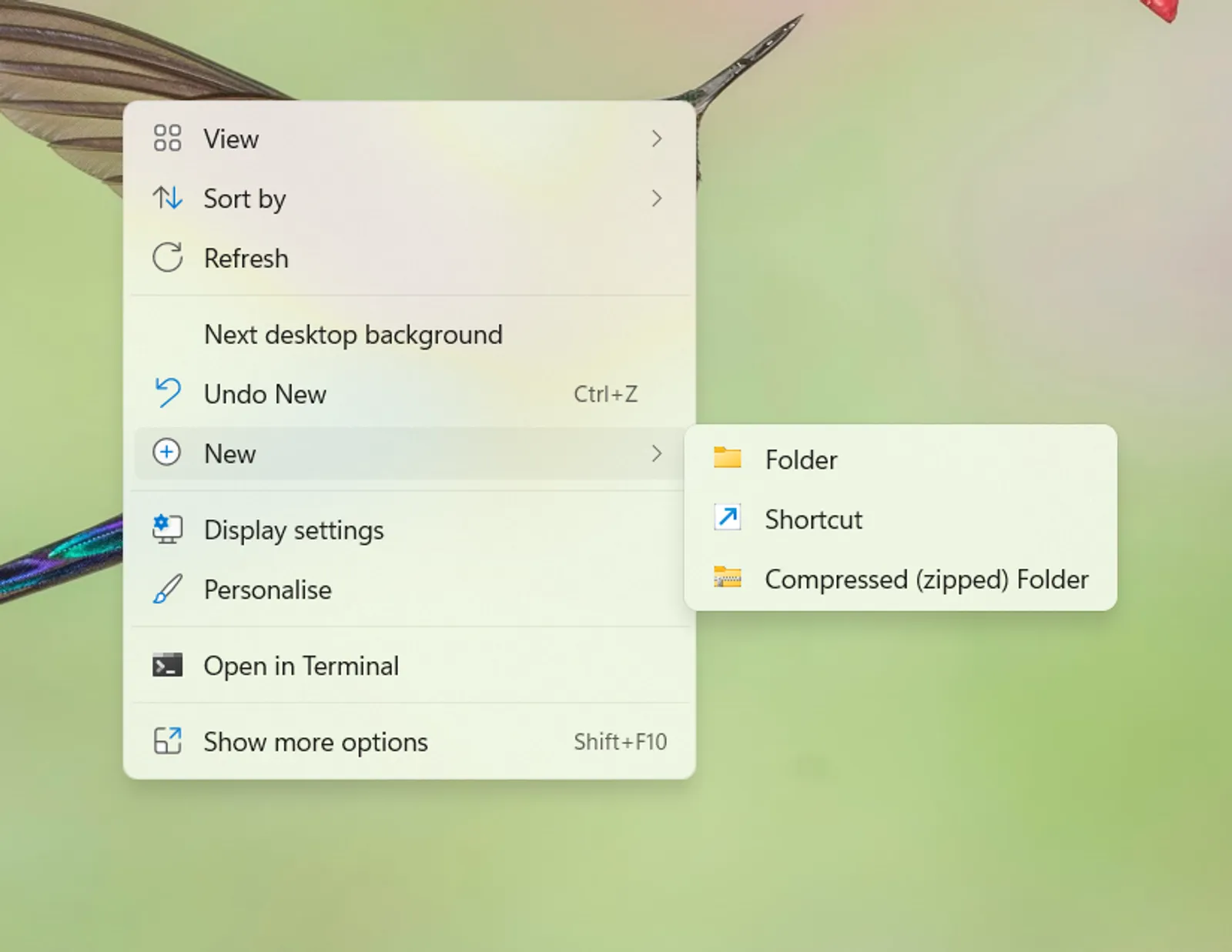
Click browse and navigate to the PuTTY folder.It’s usually located in
C:\Program Files\PuTTYorC:\Program Files (x86)\PuTTYSelect putty.exe, click OK and Next.Enter a name for you shortcut. e.g. LinuxServer and click Finish.
- Right-click on your new shortcut and click Properties. Take note of the Target field. It shows the path to putty.exe in Program Files.
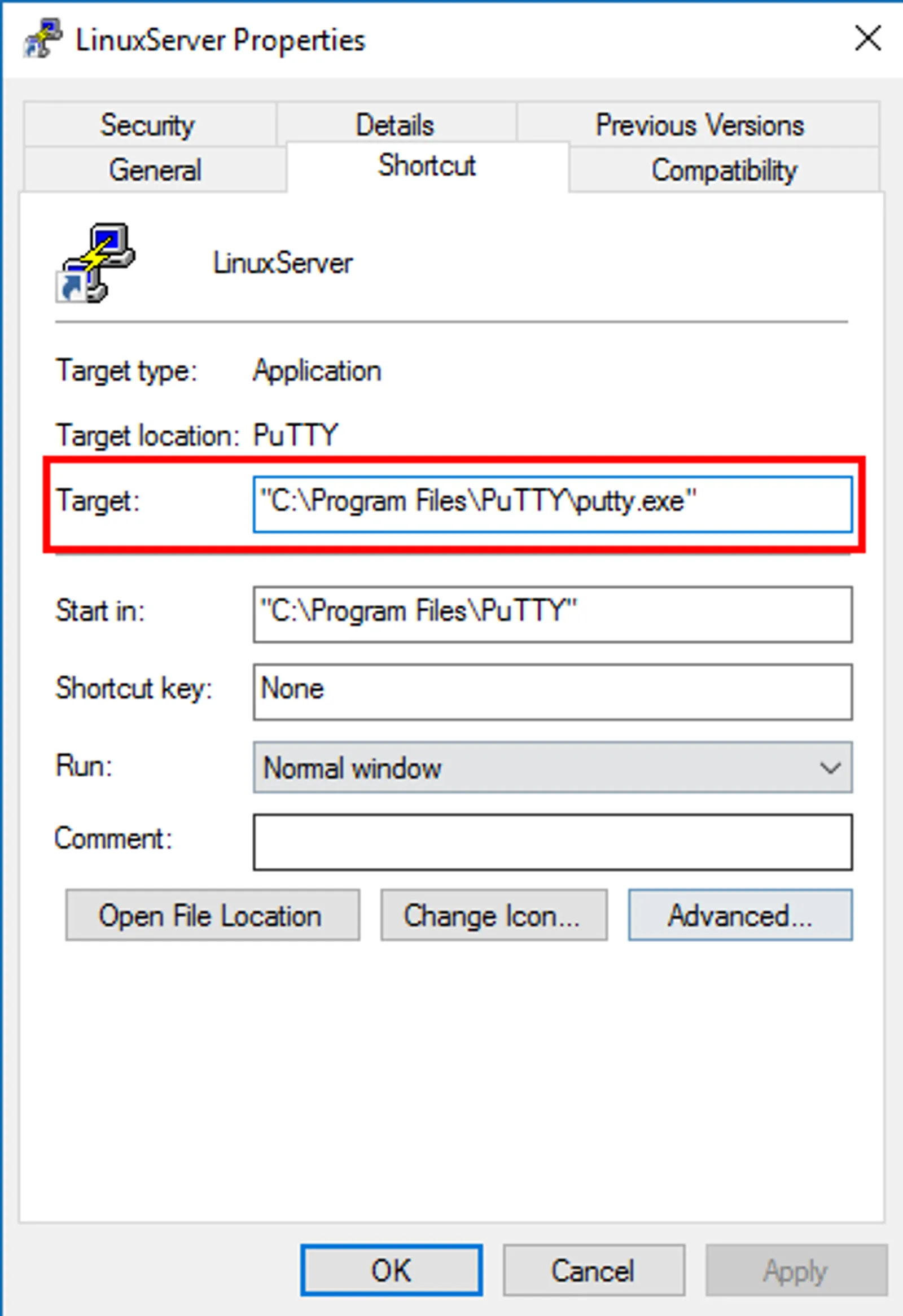
After the double quotes, paste in the following
user@server.com -pw password
Replace user with username, server.com with your server address and password with your server password.
Click OK and you’re done!
Now when you double-click the shortcut it will bring you straight into your Linux server without having to enter username or password.
You might also like to read
- 1.AEM Caching Series 1 - Cache Basics And Foundational Dispatcher Invalidation
- 2.AEM Caching Part 2 - Practical Mid-Level Strategies for Dynamic Content and Dispatcher Configuration
- 3.AEM Caching Part 3 - High-Traffic Architecture, Multi-CDN Design, GraphQL Caching, and System-Level Stability
- 4.AEM Dispatcher Series 1 - A Developer’s Guide to What It Is and Why You Should Care
- 5.AEM Dispatcher Series 2 - Understanding the `dispatcher.any` File